Meridian People & Skills Hub brings a dialog to you while you work in Jira or Confluence to point out a new skill it derived from your work. It shows the skill that stood out most, so you can settle it on the spot and handle the rest in your profile. The first dialog appears no earlier than 24 hours after the first scan, and always at the start of a working session, not mid-task. What you see depends on your profile population mode.
Strict Compliance: Review a suggestion
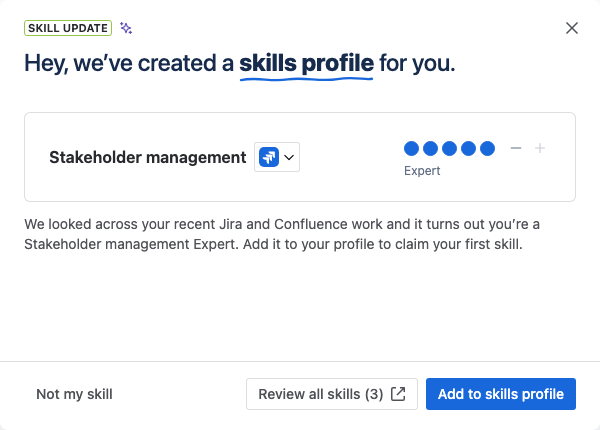
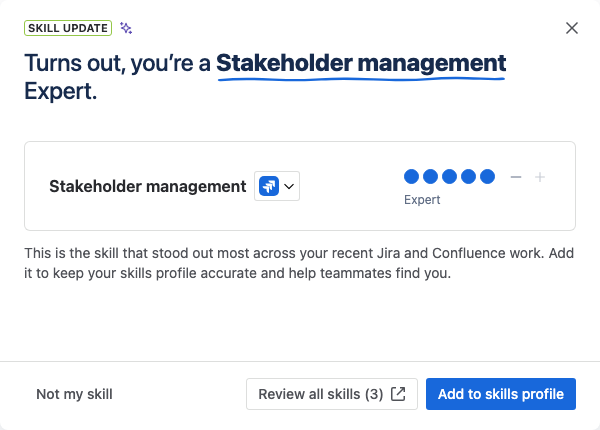
A card shows the skill that stood out most in your recent work, with the level the app proposed. You can adjust the level first, then choose:
-
Add to skills profile adds the skill at the level shown.
-
Not my skill rejects it and moves it to your Blocked list.
-
Review all skills opens the Suggested tab with the rest.
Closing the dialog counts as a review, whether you use a button or click outside it. The next one then appears about once a month, and only while you have suggestions waiting. The same clock restarts when you open the Suggested tab or act on a skill anywhere in the hub. If you keep your profile up to date yourself, the dialog may not appear again at all. The first time, the dialog welcomes you to your new profile; later, it just names the standout skill.
Maximum Velocity: A one-time notice
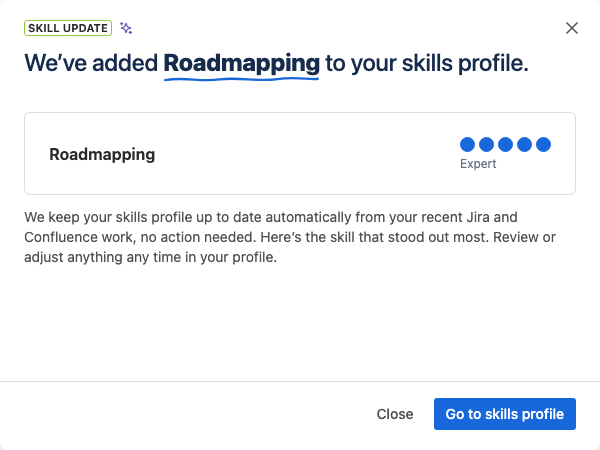
Skills are added to your profile automatically, so this dialog only informs you. It names the skill that stood out most and links to your profile. There is no accept or reject, and it appears only once.