
Meridian People & Skills Hub derives skills from the work you have completed in Jira and Confluence. In Strict Compliance mode, it suggests them to you first: A suggestion isn't on your profile until you accept it, and you decide which ones fit, at what level, and which ones you never want to see again.
This page describes Strict Compliance. If your profile has no Suggested tab, your organization uses Maximum Velocity, and skills arrive on your profile without a review step. You can still adjust and block them; see Adjust a skill level and Block a skill.
How the app arrives at a suggestion: It proposes up to eight skills per analysis, each with a level that reflects how strongly the work supports it. For Jira, it analyzes up to ten resolved issues at once; for Confluence, it analyzes a page on its own. It also receives the skill names your organization already uses, so it reuses an existing name instead of creating a near duplicate. That's why a suggestion sometimes carries a name your colleagues use rather than the one you would have picked.
Before you begin
-
Required permissions: None beyond the data access below. Everyone maintains their own profile.
-
Data access: The first time you open the app, Atlassian asks you to allow it to read your Jira and Confluence content on your behalf. If you decline, the app can't work for you; see The app does not work after you declined the access dialog.
Review suggestions in your profile
-
Open the hub and select My skills profile.
-
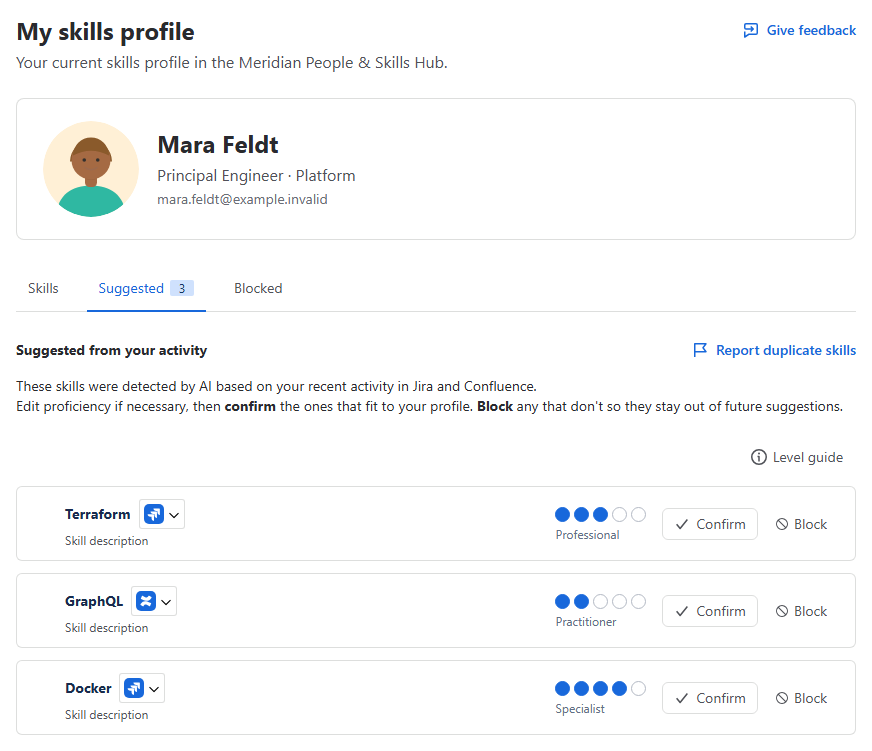
Select the Suggested tab. The number on the tab tells you how many suggestions are waiting.
-
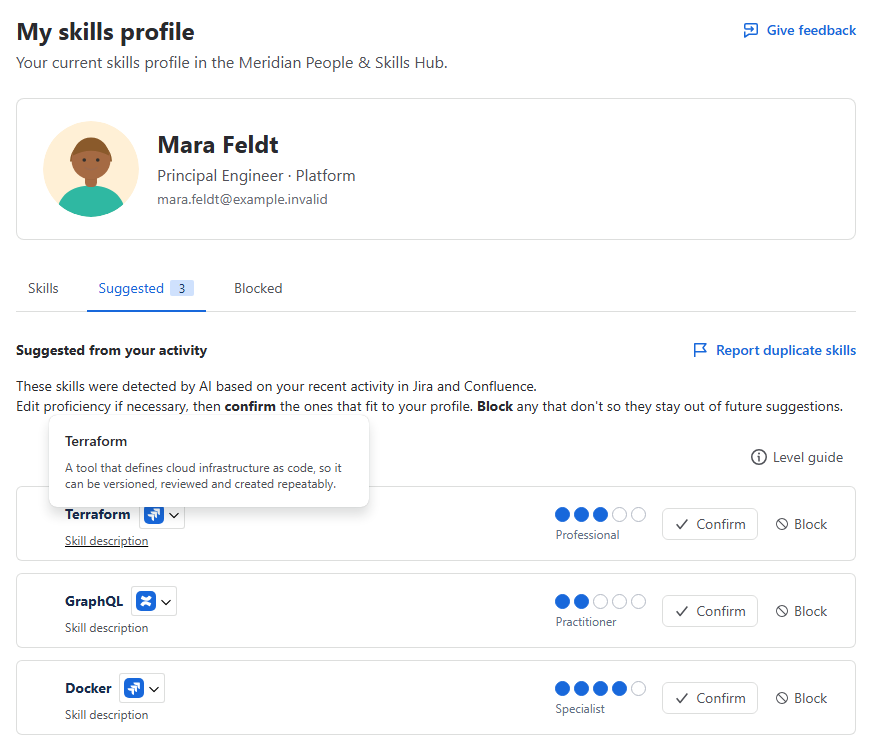
Check the skill name and the level the app proposed. To see which work produced the suggestion, open the evidence next to the skill name; see Check the evidence behind a skill. To read what a skill means, click Skill description below its name.
-
Correct the level if it doesn't match your view.
-
Accept or reject the suggestion:
-
To add the skill to your profile, click Confirm on the card.
-
To reject it, click Block on the card, then Block in the dialog. A blocked suggestion moves to your Blocked list, and the app doesn't suggest it again unless you unblock it.
-
-
To handle several suggestions at once, point at a card and select its checkbox, then use Confirm or Block in the bar that appears.
Accepted skills appear on the Skills tab of your profile and count in expert search and skills coverage right away. Colleagues see them the next time they open your profile.
Related tasks
-
Dialogs that appear while you work, where the app offers you your most prominent suggestion without you opening the hub