
Every skill Meridian People & Skills Hub derives points from traces back to its source. That evidence tells you why a skill was suggested, and it helps you judge whether a colleague's skill fits the problem you have.
How to check the evidence behind a skill
-
Open the hub and select My skills profile, or open a colleague's profile from a search result.
-
Find the skill in the list.
-
Click the source icons next to the skill name to open the evidence.
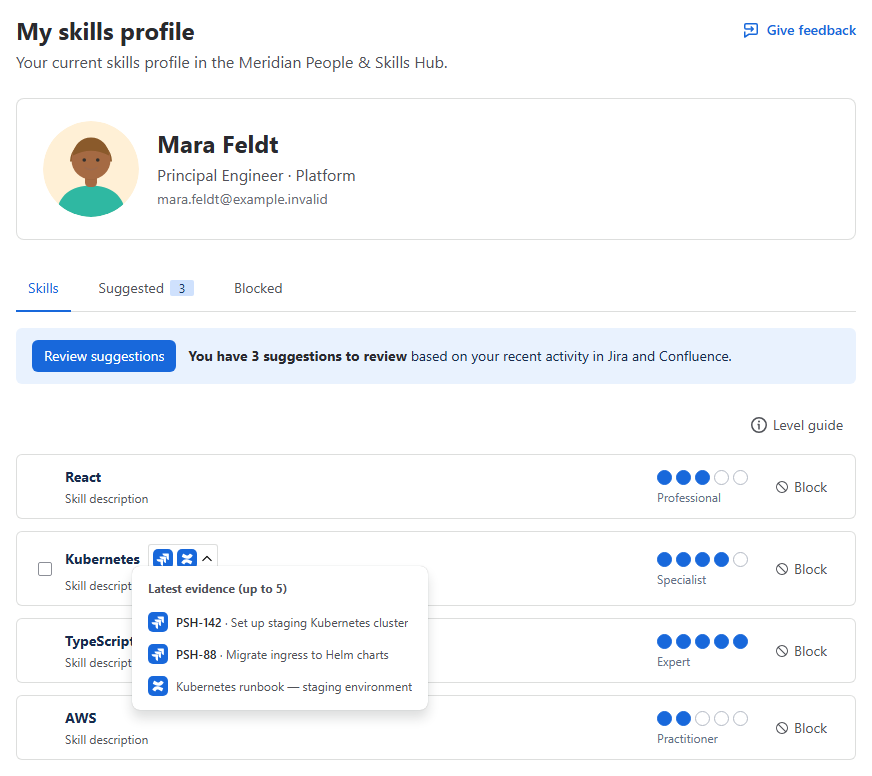
Image 1: Evidence behind a skill (click to enlarge)
The popover lists the five most recent work items behind the skill, newest first. Jira entries show the issue key and title, Confluence entries show the page title. The entries name the work, but they are not links, so open the issue or the page in Jira or Confluence yourself.
Behind that short list, the app stores more. It keeps up to 20 entries per source, so up to 20 from Jira and up to 20 from Confluence for the same skill. When new work arrives, the oldest entry of that source drops out.
What you see and what your colleagues see
Evidence is loaded with the permissions of the person looking at it:
-
You see the issues and pages you are allowed to open in Jira and Confluence.
-
An entry you have no access to doesn't appear at all.
-
If you have access to none of the entries, the popover says that no accessible evidence can be shown.
Two people can therefore see a different number of entries for the same skill. Nobody learns anything through the app that they couldn't open directly in Jira or Confluence.
Why the list doesn't grow
Once a skill is on your profile, its evidence list stays the same. Work you do later is still analyzed, but it doesn't add entries to a skill you already have.
Your level also stays where it is. Even when later work supports a higher level, the app doesn't raise it, so a level you set deliberately stays in place. To change it, see Adjust a skill level.