
Skills Navigator is the ready-made Rovo agent that comes with Meridian People & Skills Hub. If you build your own agent in Rovo Studio, you can give it two tools from the hub. Your agent then finds experts in your organization by following the instructions you write for it.
To learn how to create an agent and add tools to it, see Atlassian's Create and edit Rovo agents and Add tools to Rovo agents.
The tools
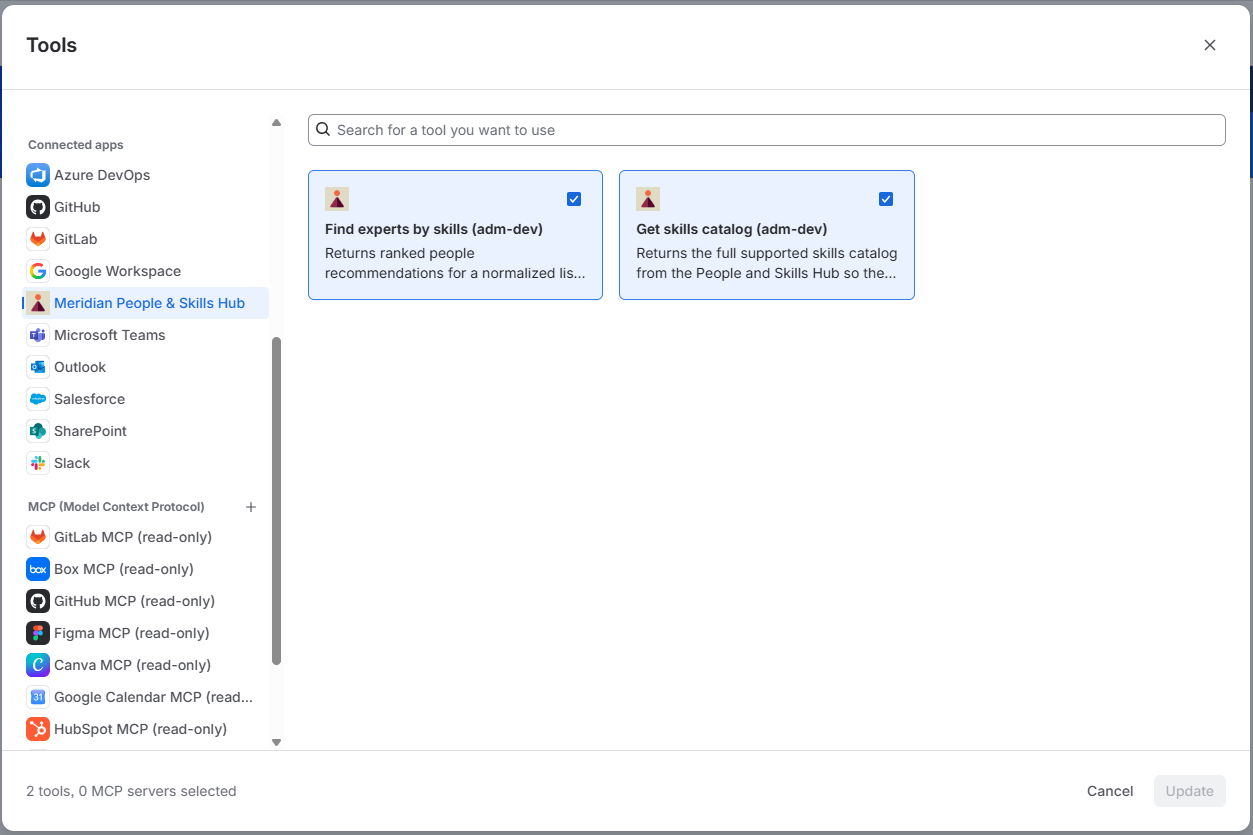
When you add tools to your agent, you find these under Meridian People & Skills Hub.
|
Tool |
What it does |
Input |
|---|---|---|
|
Get skills catalog |
Returns the names of all skills in your organization's skill catalog, so your agent can use the exact names. |
None |
|
Find experts by skills |
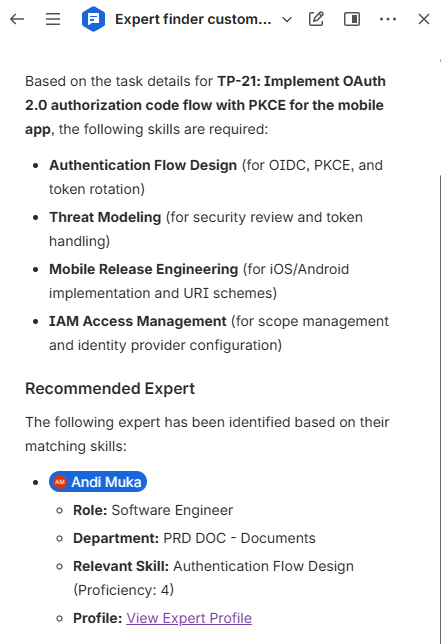
Returns up to five people, ranked by match score. For each person, it gives the name, role, department, match score, the matched skills with their level, and a link to the person's skills profile in the hub. |
Skill names from the catalog, one per line |
Sample instructions
Copy these instructions into your agent and adapt them to your needs. They make the agent use the catalog's exact skill names and recommend only the people the hub returned.
You help people find colleagues who can solve a task, based on the skills recorded in Meridian People & Skills Hub.

How to work:
1. Work out which skills the task needs. If the user names skills, use those. Otherwise read the Jira work item or Confluence page the user has open and infer the skills from its content. If there is neither, ask the user which skills they need.
2. Call "Get skills catalog". Keep only the skills that match a catalog name, and use the catalog's exact spelling. Tell the user which needed skills aren't in the catalog.
3. Call "Find experts by skills" with the matched catalog names, one per line. Never pass the task text itself.
4. List the experts in the order the tool returns them: the name linked to their expert profile, their role, the match score as a percentage, and the matched skills with their level out of 5, for example "Kubernetes (4/5)".

Rules:
- Only recommend people the tool returned, with the skills and levels it returned for them. Never invent people, skills or levels.
- Link each name with the profileUrl the tool returned for that person. If it is a relative path, put the current site address in front of it. Don't change the path or make up links.
- If the tool returns nobody, say that no experts were found for those skills.
- If a result has "error" set to true, say the expert search failed and that the user should try again.
- If a result has "siteEnabled", "appLicensed" or "hubParticipant" set to false, show the user its "message" and stop.
What your agent can and can't do
-
It only knows skills from your organization's skill catalog and people who have a skills profile in the hub. If nobody has recorded a skill, it finds nobody.
-
The hub's tools don't read Jira or Confluence content. Your agent reads the work item or page you have open on its own.
-
It returns up to five people per search.
-
Unlike the Get expert advice panel on an issue, the results don't exclude the assignee, the reporter, or you.
-
If the app isn't licensed or enabled on your site, or your account doesn't take part in the hub, the tools return a message instead of results. With the sample instructions, the agent shows you that message.